



Every computer user sooner or later needs to record video from their desktop. For example, when creating a tutorial, a school project, or simply to capture what's happening on the screen.
We've compiled a list of the best free options that are ideal for use on Windows 10. The programs are not listed in order of functionality. Feel free to choose any one you like.
OBS Studio
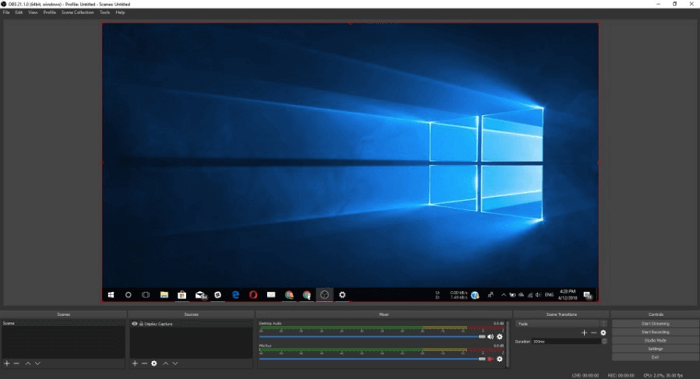
Open Broadcaster Software Considered one of the best screen recording and streaming apps for Windows 10, it replaces OBS Classic. However, it works just fine with older operating systems like Windows 7 and Windows 8.1.
Supports multiple encoding technologies, including the AMD Video Coding Engine, x264 library, and Intel Quick Sync Video. It lets you record what's on your display and output an additional video stream from your webcam. The resulting footage can be saved in the desired format: FLV, MP4, MOV, MKV, or TS.
The Studio extension makes it easy to add various images and text to your video while recording. In addition to supporting standard online broadcasts, it also supports streaming existing footage online. It also supports a wide range of scene transition settings, greatly simplifying the process of creating videos using multiple streams.
A small number of Nvidia graphics card owners are experiencing minor recording issues. The integrated Nvidia NVENC multithreaded encoder simply refuses to work with OBS on some graphics cards. If updating the drivers doesn't help, go to "File → Settings → Output" and change the "Encoder" setting to QSV or something else.
OBS isn't exactly the easiest software to use. This can be a turn-off for many users, as it takes some time to get used to. However, it has one huge advantage: it's completely free.
FlashBack Express
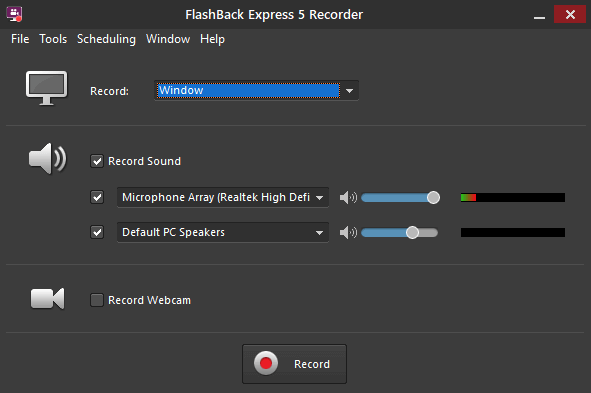
If OBS Studio seems a little confusing, then FlashBack Express You'll definitely love it. Its user-friendly interface makes it easy to use, even for beginners. Besides its excellent interface, FlashBack Express is also notable for its lack of watermarks and recording time limits. This is a significant advantage over other free programs, which limit recording time to just a few minutes.
FlashBack Express lets you record what's happening on your screen or webcam (including audio). You can also set a specific start and end time for recording, or have it start when you launch a specific application.
After recording, the program will ask you whether you want to save the video or view it. Select the latter to access additional settings. Here, you can adjust audio sync, trim unwanted fragments, enable mouse cursor highlighting, take a screenshot, and, most importantly, export it to MP4 format.
It's ideal for creating simple clips, such as short tutorials and presentations. However, if you want to focus more on editing or add annotations, you'll need to upgrade to the paid version, FlashBack Pro.
ApowerREC
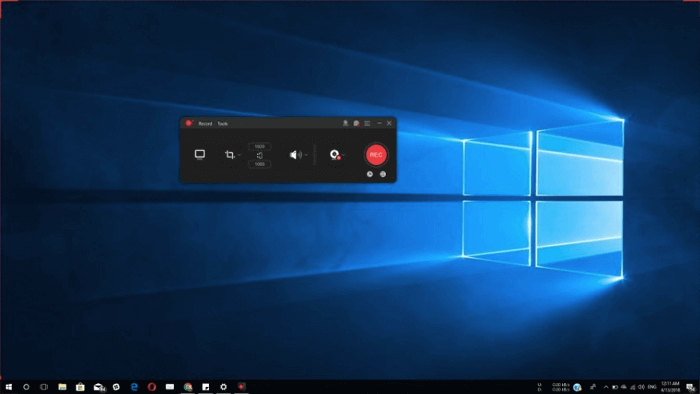
ApowerREC — a wonderful tool with a simple and user-friendly interface. As you work, you can add text, annotations, shapes, and markers.
The program can start recording at a specific time or when an application is launched, and it can also take screenshots of the monitor while recording. The software also features an Around Mouse mode, which captures only a small area around the cursor.
ApowerREC can save videos in various formats and share them on various platforms, such as YouTube, Google Drive, and Vimeo. However, the basic version lacks online streaming and editing capabilities. For these features, you'll need to purchase an app or use another utility.
XSplit Broadcaster
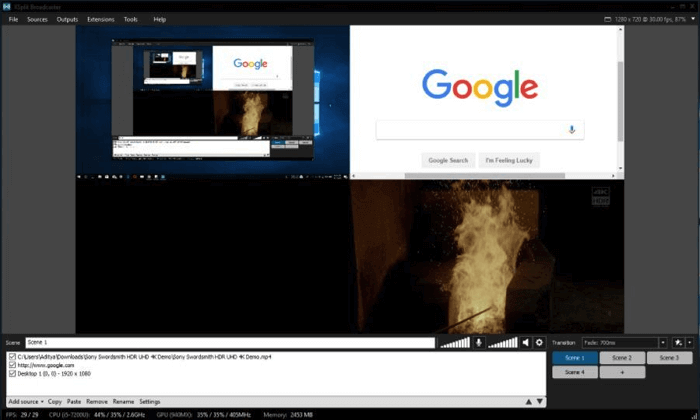
XSplit Broadcaster makes it possible to work with multiple audio/video sources and even combine them during live broadcasts.
Once the app is installed, simply click the "Add" button in the lower left corner and select the desired sources. Like OBS, this software has a wide range of features, which can be quite challenging to navigate at first.
The maximum number of scenes is virtually unlimited. You can also instantly switch between them, allowing for seamless recording when switching between apps. The button for changing video quality and resolution settings is located in the upper right corner.
One of the biggest advantages of this utility is its support for custom plugins, which allows for significant expansion of its core functionality. It also supports a wide range of capture cards for recording from external devices.
Once the process is complete, the software is ready to share footage across multiple platforms. While Broadcaster can be used for recording games, it's better to use a dedicated version called XSplit Gamecaster.
The free version records in 720p and 60 frames per second. You can also record in 1080p, but a watermark will be present. The paid version allows you to remove the watermark and record in 4K, but this is not required.
TinyTake
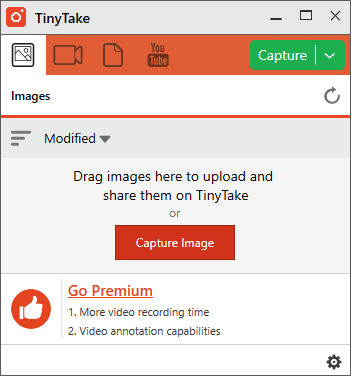
Another excellent tool for screen recording is the program TinyTakeIts free version is a bit like a screenshot app with the added benefit of screencasting. You can capture your desktop or switch to webcam video, but you can't edit or annotate anything. These features are only available after purchasing the premium version.
The free version only records five-minute videos. You can increase the duration to two hours for 7 days, remove ads, get YouTube integration, and add notes by subscribing for $9.95.
After installing TinyTake, you'll be required to register with MangoApps, which will unlock access to cloud storage with 2 free gigabytes for file sharing. Overall, this is an excellent program if you don't plan to stream games online. Its free version provides most people with exactly what they're looking for.
Game DVR
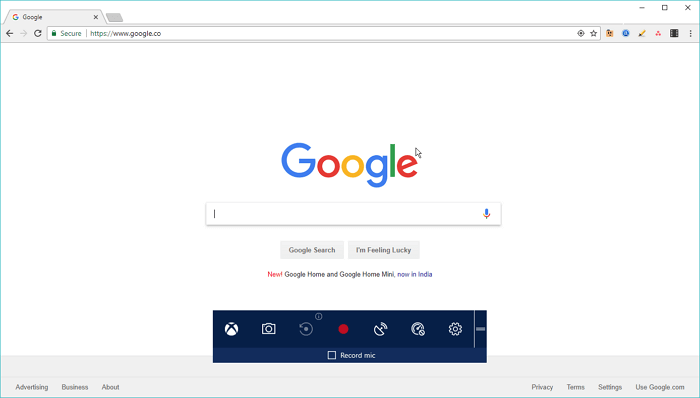
If you want to impress your friends with recordings of your gaming exploits, Game DVR is the perfect solution. This excellent software allows you to create gameplay videos and take screenshots.
The Game Bar opens with the Windows + G keyboard shortcut. You can change audio/video settings, as well as many other options, in Settings: Start → Settings → Gaming → Game DVR.
Game DVR is designed for creating long gameplay videos up to four hours long. While the utility is complex, it can also be used to record a single application window, although Game DVR doesn't capture the entire desktop.
VLC Media Player
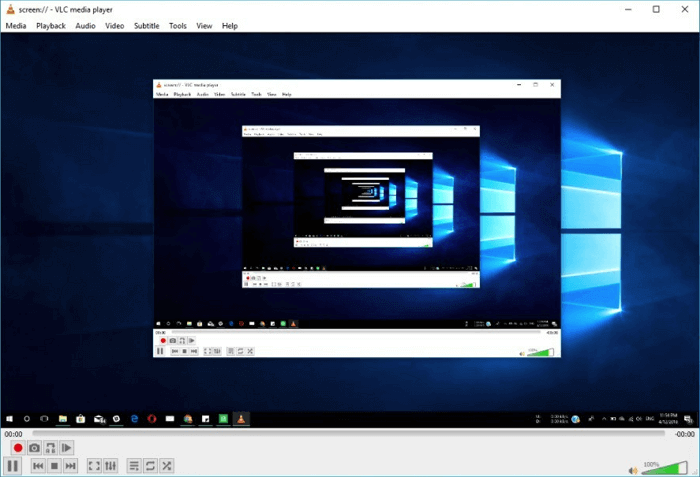
About the player's rich capabilities VLC Almost everyone knows about it. But not everyone knows that this open-source media player has another extremely useful feature: screen recording. It easily records what's happening on your screen and saves it anywhere you like.
However, don't expect much functionality from it, as it only offers basic features. With VLC, you can add an external audio track, stream what's on your monitor over the internet, and capture video from your webcam.
Screencastify
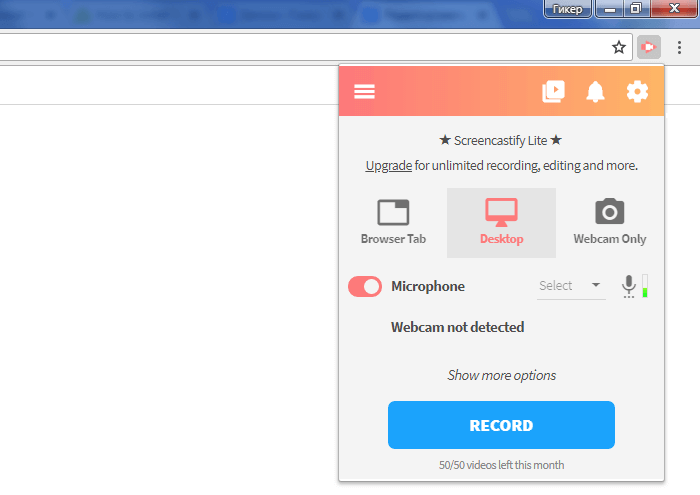
If you are a Google Chrome user, we recommend trying an extension called Screencastify Lite, which allows you to record browser tabs, desktop, and applications. It can work with webcams, microphones, and system sounds.
Screencastify creates high-resolution videos at 60 frames per second, then saves them to your computer, uploads them to Google Drive, or shares them on YouTube. You can embed webcam footage as a thumbnail. It also offers a number of other features, including drawing shapes and capturing only the area around your cursor. However, all of these options are only available within the browser.
This extension doesn't offer editing capabilities and adds a watermark to the upper right corner of the clip. Users can create up to 50 videos per month, each up to 10 minutes long.
The paid version of Screencastify removes all time constraints and adds several new features to the basic functionality. Its simplicity makes it one of the best tools of its kind. The quality of the footage it produces is comparable to that of full-featured programs.