



We live in exciting times, especially when it comes to mobile technology. We have a wealth of entertainment at our fingertips, accessible virtually anywhere and anytime. It's easy to use a small device that fits in your pocket. But you still want to watch a movie on the big screen. So what if the video you need is stored on your mobile device?
In this case, you can simply connect your smartphone to your TV, just like a music player or memory card. This turns your tablet or phone into a multimedia center. There are many ways to implement this simple plan, but there's no single standard for streaming video from your phone to your TV. We've compiled a list of the most convenient and accessible methods. All you have to do is choose the right one.
Using HDMI and MHL cables
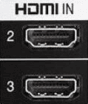
Let's start with the standard options that require cables. If your TV has an HDMI port and your phone has a micro or mini HDMI port, the solution is quite simple: connect the ports with a special cable and enjoy the results.
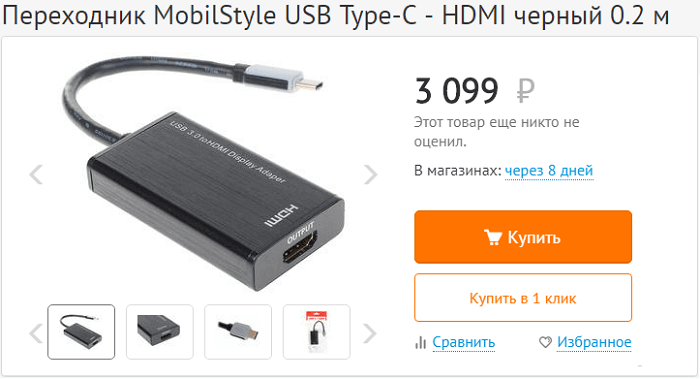
But most smartphones only have a micro-USB port, so a special MHL (Mobile High-Definition Link) adapter, designed specifically for mobile devices, comes to the rescue. It combines the functionality of micro-USB and HDMI (transmitting high-quality audio and video). It can be purchased at a computer store for 3,000 rubles. One end will have a micro-USB port for connecting to the phone, and the other will connect to the HDMI port of the TV.
For older devices, a universal SlimPort cable can be used as an alternative to MHL. SlimPort can be used in conjunction with USB to output signals to DVI, VGA, and DisplayPort.
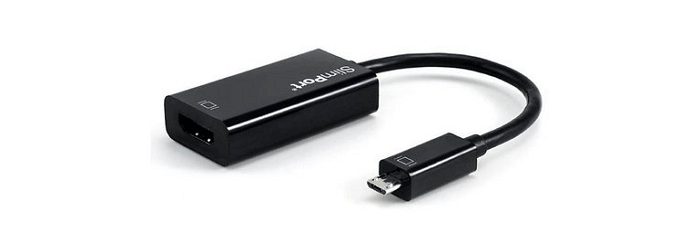
SlimPort-compatible devices are becoming increasingly rare. However, some manufacturers, such as LG and HTC, continue to add support for this technology to their smartphones. However, don't count on it. You'll need to check the specifications of your specific smartphone to find out which interfaces it supports.
How to get by without wires
If you don't like messing with cables, then our recommendation is to install an app on your phone that turns it into a UPnP/DLNA server (requiring a modern smart TV). Then, simply play videos and photos from the small display to the TV via Wi-Fi. Major smart TV manufacturers include Samsung, Sony, Philips, LG, and Panasonic.
Unfortunately, most of the built-in features on these TVs are proprietary. For example, Samsung's AllShare system and Smart Share LG only works with certain models of their company's smartphones.
But you can also use third-party apps. For an Android device, BubbleUPnP - after launching it, go to the Devices menu to select your TV model, then Library and select the desired file in the folder that you want to play.
You can also try other free streaming apps such as iMediaShareIt allows you to transfer photos, play videos, and music from your smartphone or tablet to a Smart TV or other DLNA-enabled devices.
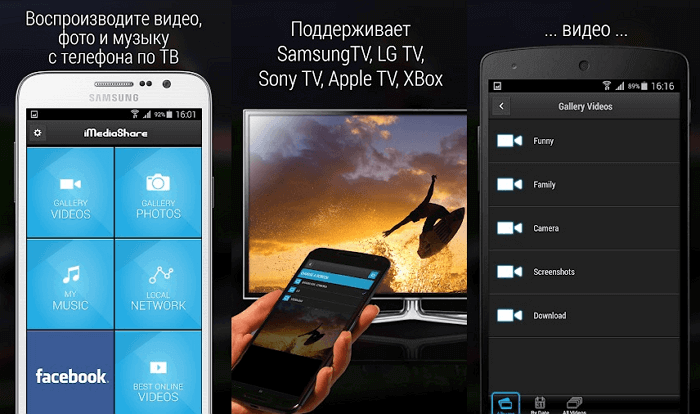
Wireless streaming usually introduces a delay in playback on a Smart TV. While this isn't a big deal when viewing images, it can be annoying when watching a movie.
Cable-free phone-to-TV connection methods have a couple of significant drawbacks. First, they require a significant amount of power, which quickly drains the battery. Second, transmitting high-resolution images (preferably Full HD) requires a powerful CPU.
Various prefixes
If you frequently need to stream video from your phone, you should consider purchasing specialized set-top boxes that will offer a range of additional features. Read the reviews of these gadgets below and you'll understand what we mean.
Miracast (1,500 rubles)
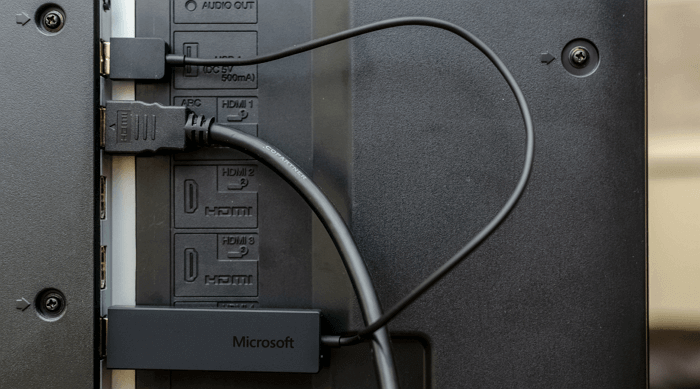
Miracast isn't a device, but a standard for wirelessly transmitting multimedia content. It's similar in many ways to Airplay. However, unlike Airplay, Miracast doesn't require a Wi-Fi network or internet connection. Instead, it creates its own network using Wi-Fi Direct technology. The network has a short range, making it highly secure from outside interference.
Miracast doesn't require any fancy transmitters in your mobile phone—it only requires a Wi-Fi module, which is obviously included in any modern phone. The connection to the TV is established via Wi-Fi or a dongle connected to the HDMI port.
Miracast offers a wide range of broadcasting capabilities. It's useful for both Android devices and PCs. Like AirPlay, its downside is that it uses a lot of device resources and drains the battery faster.
Google Chromecast (3,000 rubles)
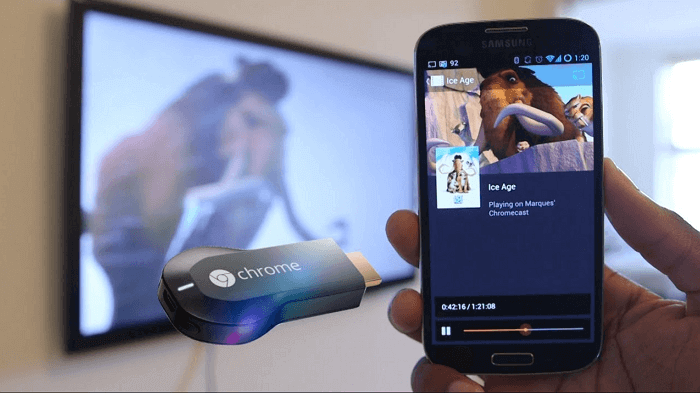
Google Chromecast is a media player that lets you stream content from your Android smartphone or tablet directly to your TV. Simply launch the Google Home app, which you can find in the Play Store. Connect the Chromecast to your TV's HDMI port and enjoy watching movies or TV shows.
A unique feature of Chromecast is its ability to conserve the resources of the device from which data is transmitted. Information will be transmitted from the media player, allowing the smartphone or tablet to conserve battery life.
Chromcast not only uses excellent streaming apps but also supports mirroring any content on your Android smartphone or tablet. This includes games, images, movies, text, and more.
Mirroring with Chromecast is available for devices running Android 4.4.2 and above. The media player may not work as smoothly with some smartphones as with others. Make sure your Google Home is updated to the latest version before you begin. Chromecast can cast anything from the Chrome browser. To do this, simply click the Cast button in the corner of the browser window.
Chromecast doesn't support mirroring for iOS. However, the media player is great for streaming content from many popular internet services, including YouTube, Spotify, and Netflix.
Roku (from 3,000 to 6,000 rubles)
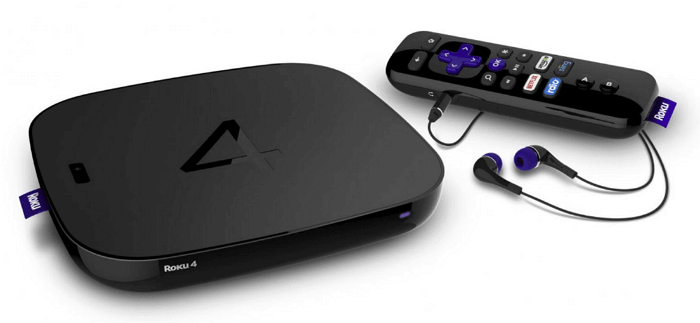
One of Roku's main advantages is its vast array of apps—over 1,000 in total. Older models lacked screen mirroring, but this shortcoming has been addressed in new Roku devices. Now you can see everything that's happening on your Android or Windows device on your TV.
Connection is available for Android 4.2 or higher, as well as Windows 8.1 or higher devices. As stated in the official Roku instructions, your device must support screen mirroring. However, experience shows that most gadgets work correctly with the set-top box. Google devices running OS 6.0 or higher are not supported.
Roku points out that Android devices use a variety of terms to describe mirroring: Smart View, Quick Connect, SmartShare, AllShare Cast, Wireless Display, HTC Connect, Screen Casting, Cast, and so on. Once you understand the terminology, you can enable mirroring from the Settings menu, usually under the Network or Display sections.
The following tip is useful for Windows 8.1 or higher. For Windows 10, open the Action Center, select Project, then Connect to a wireless display, and select the Roku device you want to connect to.
iOS users can transfer their favorite content to Roku using several apps, such as Video & TV Cast and AllCast. Setup can be a bit time-consuming, as you'll need to download apps to both the target device and your iPhone. For AllCast, you'll need to upgrade to the paid version for $1.50. Otherwise, you'll be limited to a few minutes of playback.
iOS apps for Roku allow you to stream data from iOS devices using the Play protocol. According to user reviews, this protocol is less efficient than AirPlay. For some reason, the Play protocol doesn't stream music and video content purchased directly from iTunes. So, it's best to use AirPlay.
Apple TV (11,490 rubles)
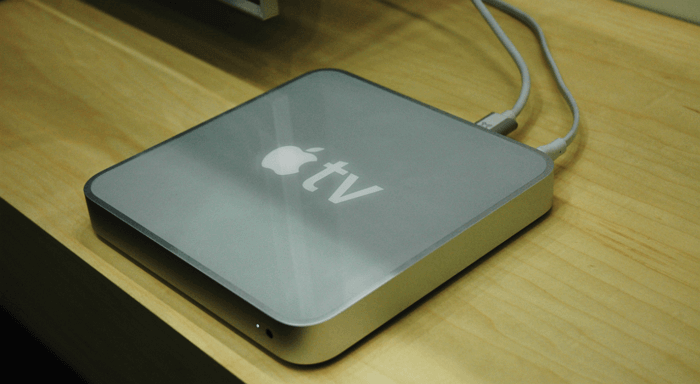
Apple TV is a streaming device that competes fiercely with products from Roku and Amazon's Fire TV. With a wide selection of apps, a touchscreen remote, and direct access to iTunes (features other set-top boxes lack), Apple TV is an excellent choice.
AirPlay technology provides high-quality playback of video, audio, and any other content. Data can be transmitted from any iOS device to any display with an HDMI input. Scroll down the screen and tap the AirPlay icon in the quick menu. It's represented by a square with a white triangle.
Streaming isn't the only option. Savvy users can always find interesting ways to use a set-top box as a home media center. If you already have an iPhone, consider getting an Apple TV as a complement.